How to Resize the Image Using Image Resizer Tools?
Resize image with Resize Image Online.

High-quality images are crucial for websites, blogs, social media, and online stores in today's digital world. Large image files, however, can impact loading times, increase storage space usage, and impair website performance. Tools for image resizing are useful in this situation. You've come to the correct place if you're looking for an easy way to compress images online! With an emphasis on effectiveness and quality, we'll walk you through the process of resizing and compressing your photos using online tools in this post.
Why Compress or Resize Pictures Online?
Let's first examine the reasons why you might want to compress an image online before moving on to the steps:
Faster Website Loading: User experience and SEO rankings are enhanced when image files are smaller.
Conserve Storage Space: Particularly helpful for websites, email attachments, and cloud storage.
Preserve Quality: A quality image resizer minimizes file size without sacrificing image quality.
Simple Sharing: Images that have been compressed are easier to upload or share via social media, email, and messaging apps.
What Is an Image Resizer Tool?
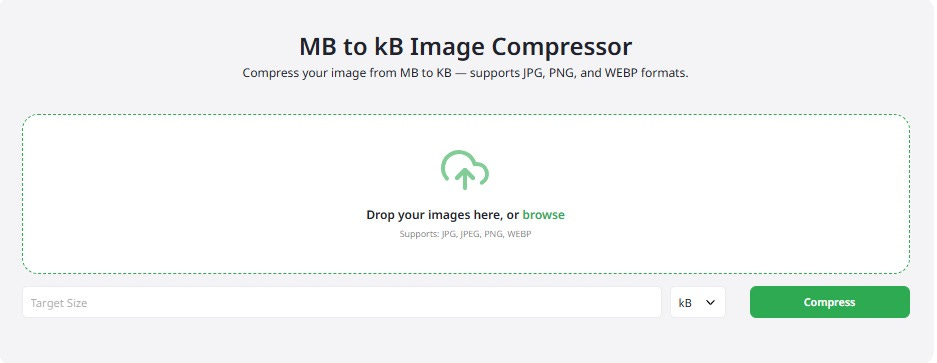
An image resizer tool is a software or web-based application designed to adjust an image’s dimensions or file size. Many tools today, like ResizeImageOnline.net, allow you to resize, crop, and compress image online quickly without downloading or installing any software. These tools are user-friendly and work directly from your web browser.
How to Resize and Compress an Image Using ResizeImageOnline.net?
Resizing or compressing an image is easy when you follow these simple steps:
1. Visit the Image Resizer Tool
Go to ResizeImageOnline.net. The site offers a clean interface designed for quick and easy image resizing and compression.
2. Upload Your Image
Click on the Upload button and select the image file from your computer, mobile device, or cloud storage. Most online tools support popular file formats such as JPG, PNG, GIF, and BMP.
3. Set New Dimensions (Optional)
Once your image is uploaded, you’ll see options to adjust the width and height. Enter the desired dimensions in pixels, or maintain the aspect ratio if you don’t want the image to look stretched or squished.
4. Compress Image Online
This is where the magic happens! Look for the compression settings. Most tools, including ResizeImageOnline.net, provide sliders or presets (low, medium, high compression). Choose the level of compression based on your needs:
High compression: Small file size, slight quality loss (great for web pages or emails).
Medium compression: Balance between size and quality.
Low compression: Retains higher image quality but larger file size.
The site ensures your images remain visually appealing even after compression.
5. Preview Your Image
Many tools provide a preview of the compressed image so you can compare before and after. Check if the image quality meets your expectations.
6. Download the Compressed Image
Once satisfied, click the Download button. The image will be saved in your chosen size and compression level, ready for use.
ResizeImageOnline.net's Advantages
No Installation Required: Everything works directly in your browser.
Fast and Secure: Your images are processed quickly, and many services automatically delete files after a short period to protect your privacy.
Free to Use: You can compress image online without creating an account or paying fees.
Compatible with All Devices: Works on desktops, laptops, tablets, and smartphones.
The Best Ways to Reduce Image Compression Online
In case you need to undo changes, always have a backup of your original photos.
Experiment with various compression levels to determine the ideal ratio of size to quality.
Make use of the appropriate dimensions for the platform (e.g., email header, website banner, social media).
After compression, optimize file names and alt text for search engines when uploading to websites.
Frequently Asked Questions Concerning Internet Image Compression
Will an image's quality decrease when compressed?
Depending on the compression level you select, there might be a slight loss of quality when you compress an image online. To help you achieve the ideal balance, the majority of tools have movable settings.
2. Is uploading pictures to an online resizer safe?
Reputable resources that care about privacy include ResizeImageOnline.net. After processing, files are usually erased. For peace of mind, always review the website's privacy statement.
Can I compress more than one image at once?
Batch compression options are available in certain online tools. To save time, look for this feature if you have a lot of images.
Conclusions
Online image resizing and compression is a clever and simple method to guarantee that your content loads quickly and uses less storage space. You can easily resize and compress images online with tools like ResizeImageOnline.net, regardless of your role blogger, business owner, designer, or casual user.
Try ResizeImageOnline.net the next time you need to reduce the size of your image files without compromising too much quality; both your website visitors and storage space will appreciate it!